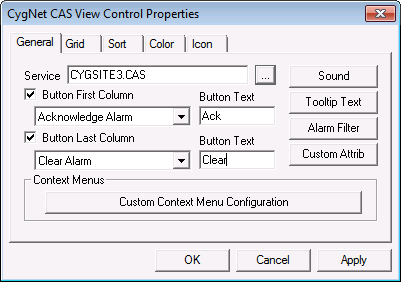
| Option | Description |
|---|---|
|
Service |
Specifies the Site.Service of the Common Alarm Service to display. |
|
Click to select/clear the Button First Column check box to enable/disable use of the "first column" button. When enabled, this button is displayed in the first column position, with the specified action and label text (and alarm icon, if configured). |
|
|
[Button Action] |
From the drop-down menu, select an action for the button to take. Options are as follows.
*To fire an event when this button is clicked, select Fire an Event from the drop-down menu, and also script the EventOnButtonClick event in the control property sheet (Events page) in CygNet Studio to perform the action required. See CxHmiCas3 Events for more information. |
|
Button Text |
In the Button Text text box, type the label text as you want it to appear on the button. Note: Although the text field is not limited, using fewer than 16 characters is recommended. |
|
Click to select/clear the Button Last Column check box to enable/disable use of the "last column" button. When enabled, this button is displayed in the last column position, with the specified action and label text (and alarm icon, if configured). |
|
|
[Button Action] |
From the drop-down menu, select an action for the button to take. Options are as follows.
*To fire an event when this button is clicked, select Fire an Event from the drop-down menu, and also script the EventOnSecondButtonClick event in the control property sheet (Events page) in CygNet Studio to perform the action required. See CxHmiCas3 Events for more information. |
|
Button Text |
In the Button Text text box, type the label text as you want it to appear on the button. Note: Although the text field is not limited, using fewer than 16 characters is recommended. |
|
Sound |
Click Sound to enable and assign a sound file for each of the alarm priority categories. See Configuring Sounds below for more information. |
|
Tooltip Text |
Click Tooltip Text to specify the text displayed when the mouse is placed over an alarm. See Configuring Tooltip Text below for more information. |
|
Alarm Filter |
Click Alarm Filter to configure alarm filtering rules. See Using CygNet Filter Rules for a general discussion on using CygNet filter rules. See Scripting Alarm Filters below for more information about using the CxHmiCas interface to script alarm filters. |
|
Custom Attrib |
Click Custom Attrib to define custom attributes for the CygNet CAS view control. This will allow you to filter using any of the custom attributes entered. See Configuring Custom Attributes below for more information. |
|
Custom Context Menu Configuration |
Click to access the Custom Context Menu Configuration dialog box to configure custom context menus for the ActiveX control. The custom options are added at the bottom of the control context menu when in Run mode. Context menus are customizable and can be set up to perform any tasks or to fire off events through scripting. See Custom Context Menus for more information. |
Use the Sound Settings dialog box to set a windows sound file or a custom sound file (i.e. a WAV file) for each of the alarm priority categories.
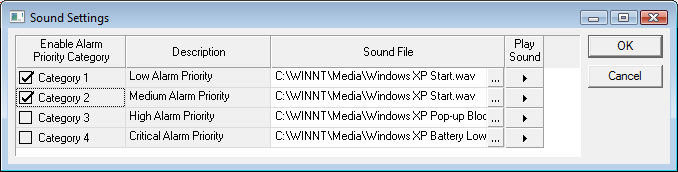
| Option | Description |
|---|---|
|
Enable Alarm Priority Category |
Click to enable sound for the Alarm Priority Category. |
|
Description |
Description of the Alarm Priority defined in the CygNet System. |
|
Sound File |
Browse to select the location of the sound file to be invoked for the Alarm Priority Category. |
|
Play Sound |
Listen to the WAV file selected. |
Use the Edit Tooltip Text dialog box to configure the text to display when the mouse is placed over an alarm in the control. Detailed information will be displayed for each row, based on the text or substituted token value for the row. Multiple tokens can be selected to display any combination of information to the end user. Spaces and/or free text are also allowed between each token to assist in the data being represented. See Using Text Tokens for more information about tokens.
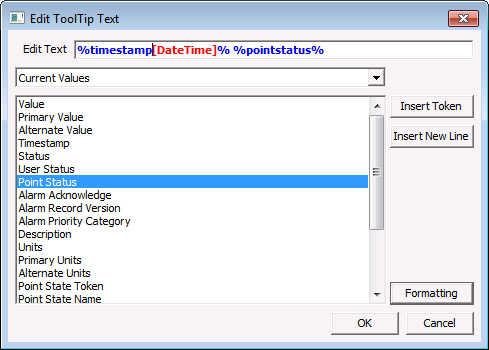
The properties on the Edit <item> dialog box are described below.
| Parameter | Description |
|---|---|
|
Edit Text |
Shows the text and/or tokens that will be displayed. In the GNS, this field displays the text that will be used in the notification message (subject line, body, or WAV file name). This field may include tokens that refer to the source (current) point that is triggering the notification AND reference tags to other related points. |
|
Drop-Down Menu |
Available attributes are categorized into logical groups for ease of lookup. Select a desired category from the drop-down menu. |
|
Attribute |
All current attributes defined in the CygNet system. For each category, select the desired value. See Token Categories for a complete list of values by category. |
|
Insert Token |
Click to insert the desired token into the Edit Text field. Repeat to display multiple values. Note: Add static text, spaces between tokens, parentheses, and other punctuation, as desired. |
|
Insert New Line |
Click Insert New Line to add a line immediately after the current token. In the GNS, only notification messages allow the use of multiple lines of text. Note: While the Edit Text field has focus Ctrl+Enter will insert a new line wherever the cursor is located. |
|
Reference Tag |
Note: This option is ONLY available in the General Notification Service. Use Reference Tag to include other points (data values or descriptive information) in a notification message using reference point token substitution. See Including Other Points in Notifications for more information about how to format and build up a reference tag for a point other than the point triggering the notification. |
|
Formatting |
Display formats can be applied to tokens. The format string is included in the token string within square brackets. An example of a format applied to a value token would be %value[0.0]%, where [0.0] is the display format. See [DisplayFormat] property for more information regarding display formats. Click Formatting to specify a custom display format for the token. See Displaying Service Monitor Point Date/Time for more information about formatting strings of text. |
Several scripting functions are provided in the CxHmiCas object to allow customized calls or methods to be utilized for alarm design time filter rules. For more information, see each of the following methods in the Scripting section.
The CAS View ActiveX Control has a set of 20 generic attributes that can be configured and used by the filter rules. The value of these attributes can be set at design time or at runtime through script. This allows the screen designer to template a set of rules by changing the value to compare at runtime. Use the dialog box presented to choose from the list of available control attributes and modify the description of the attribute and the attribute’s value.
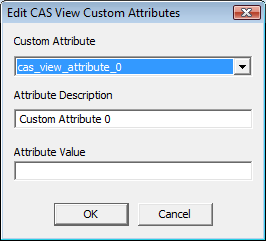

|
|
|

